
Organize your YouTube Watch Later into categories
YouTube Watch Later is one list. To organize YouTube Watch Later into categories, Tube Stash browser extension imports your existing watch later and playlists and saves each video into categories you name automatically with AI Auto categorize, instead of sending every video to the same place.
First, import your watch later and playlists
Easily import your existing YouTube playlists, including your long Watch Later list. Leave out the videos you have already watched while importing by selecting skip watched.
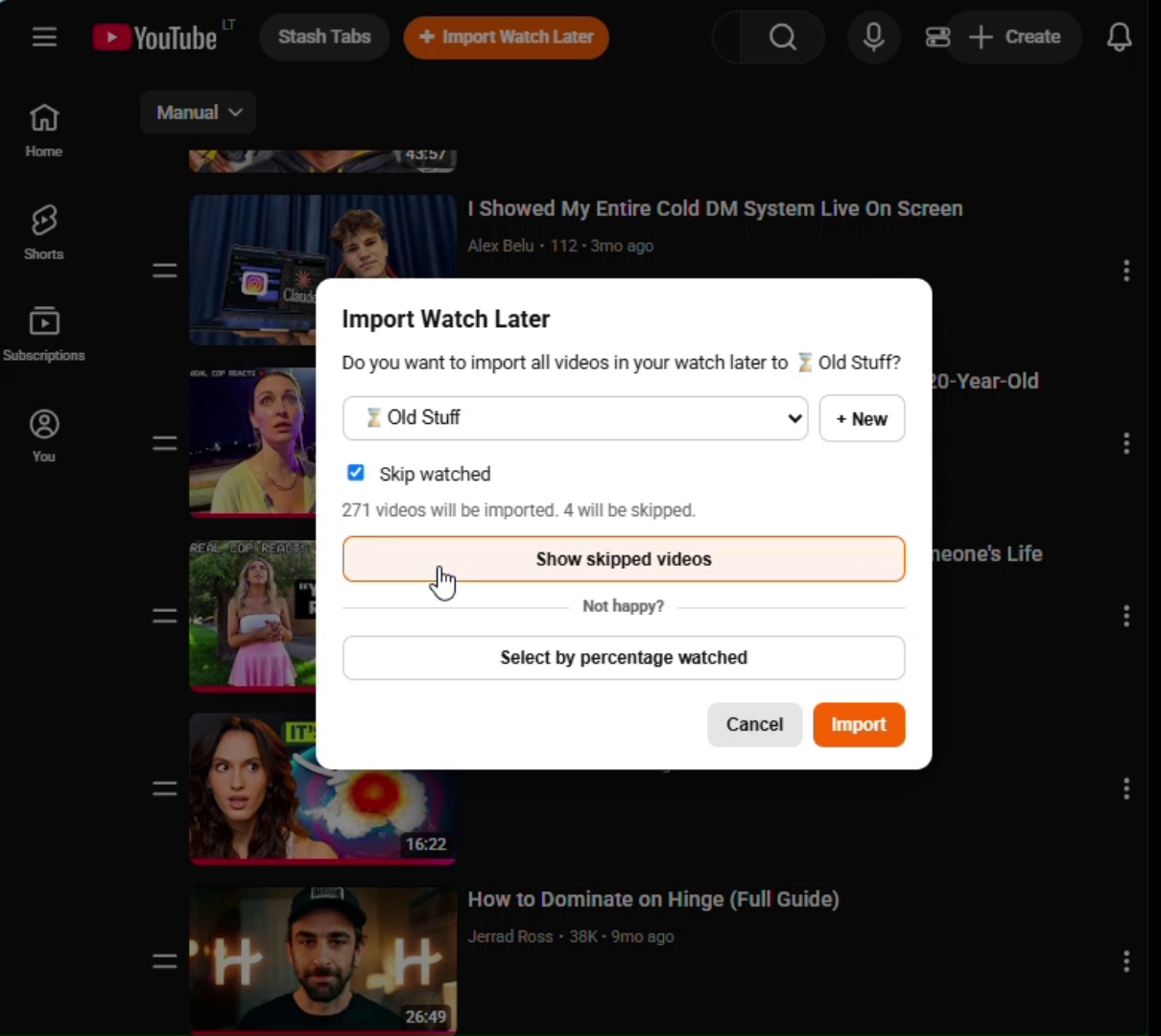
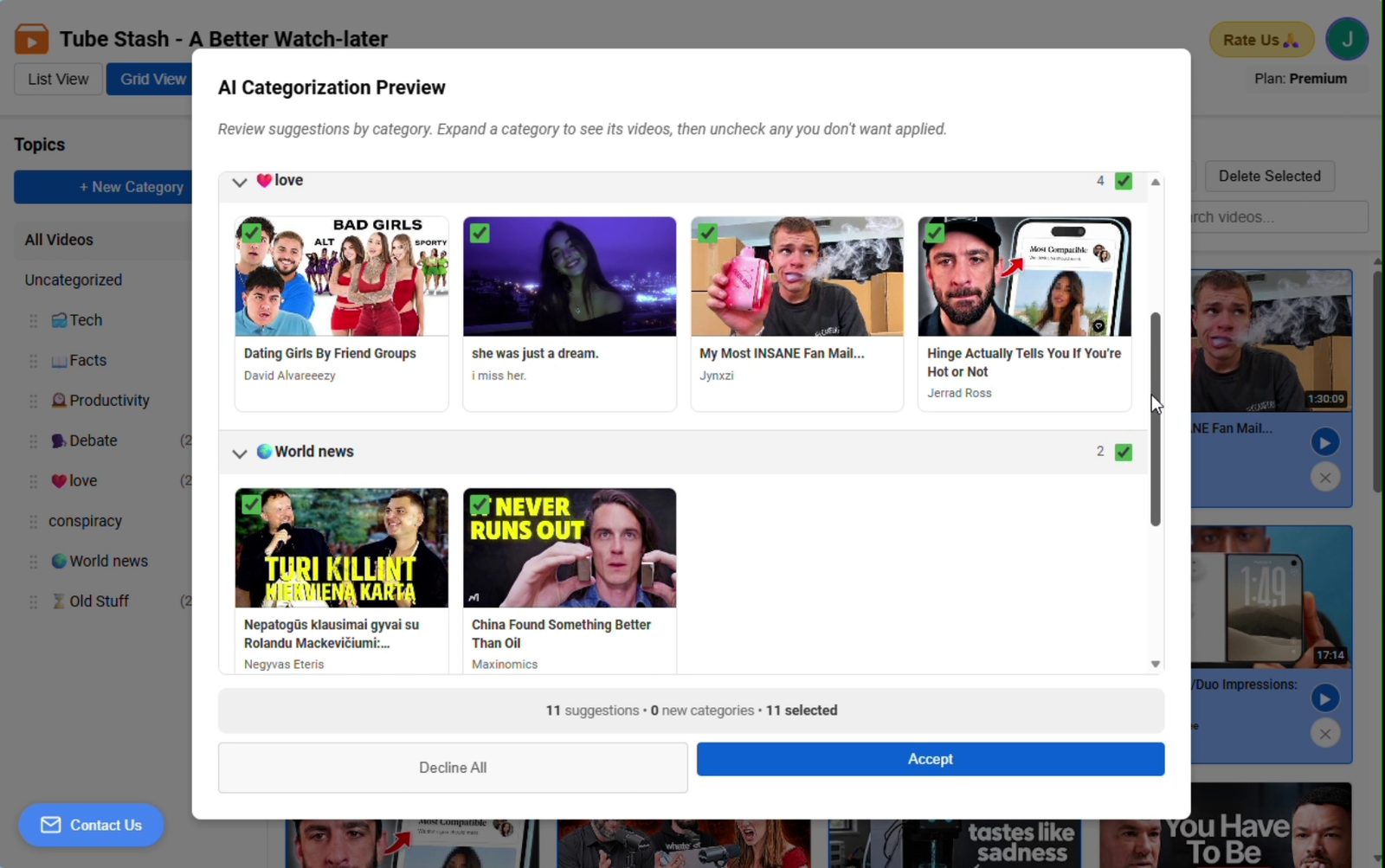
Then, let AI Auto categorize videos by suggesting categories. Accept what looks right.
If videos are already saved and still mixed together, select them and click Auto-Categorize. Tube Stash looks at the collections you already have and suggests a category for each video. You accept only the ones that look right. A suggestion you skip stays where it was.
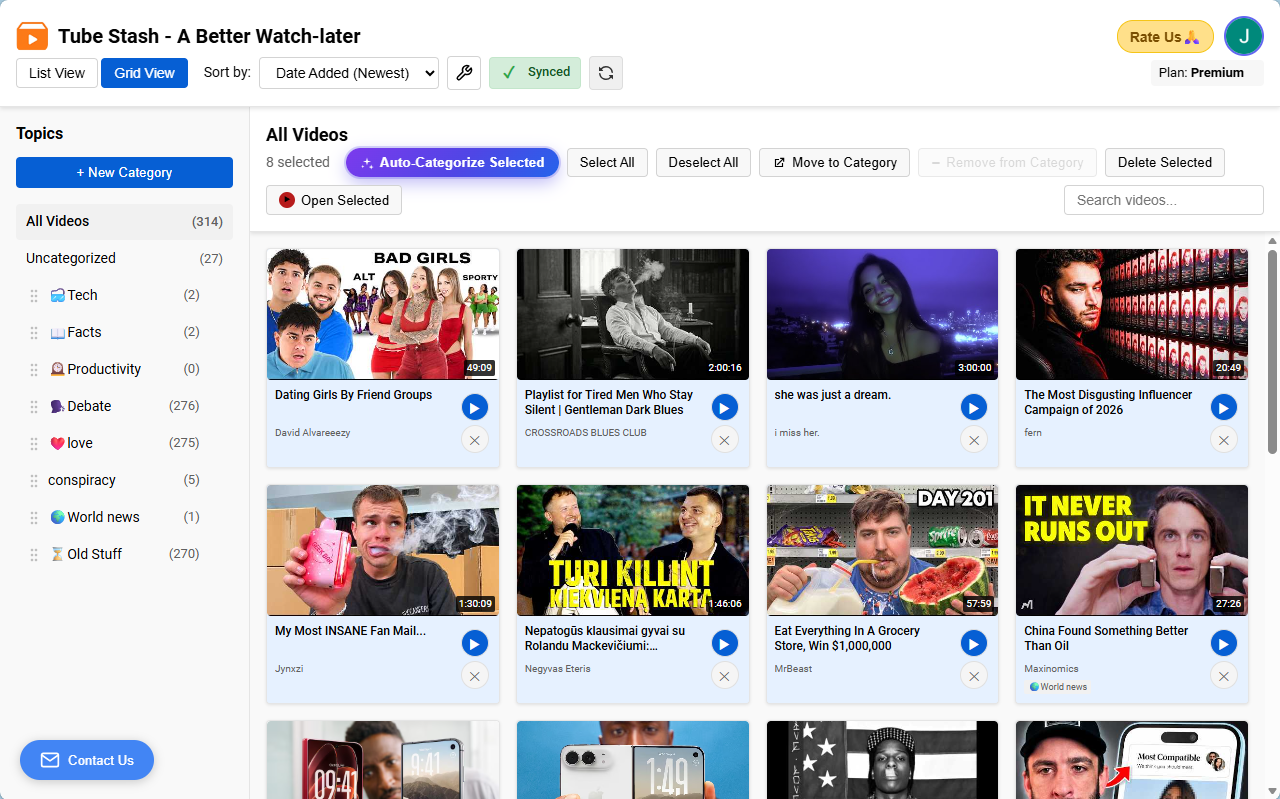
The collections page holds all the videos in their categories.
Open Tube Stash from your extensions list and the collections page shows every category in one place. You are not walking through YouTube’s menu: open YouTube, open the side menu, then Watch Later or a playlist. Sign in to Tube Stash with email or Google and the categories are backed up. Tube Stash does not sign in to your YouTube account.
Start adding YouTube videos directly into the folders you named
On the video, hover the + button and choose the category, or click + New Category. YouTube takes two clicks, and the video lands on one Watch Later list. Tube Stash puts it in the folder you picked in just one click, so a recipe, a lecture, and a song do not have to share a list.
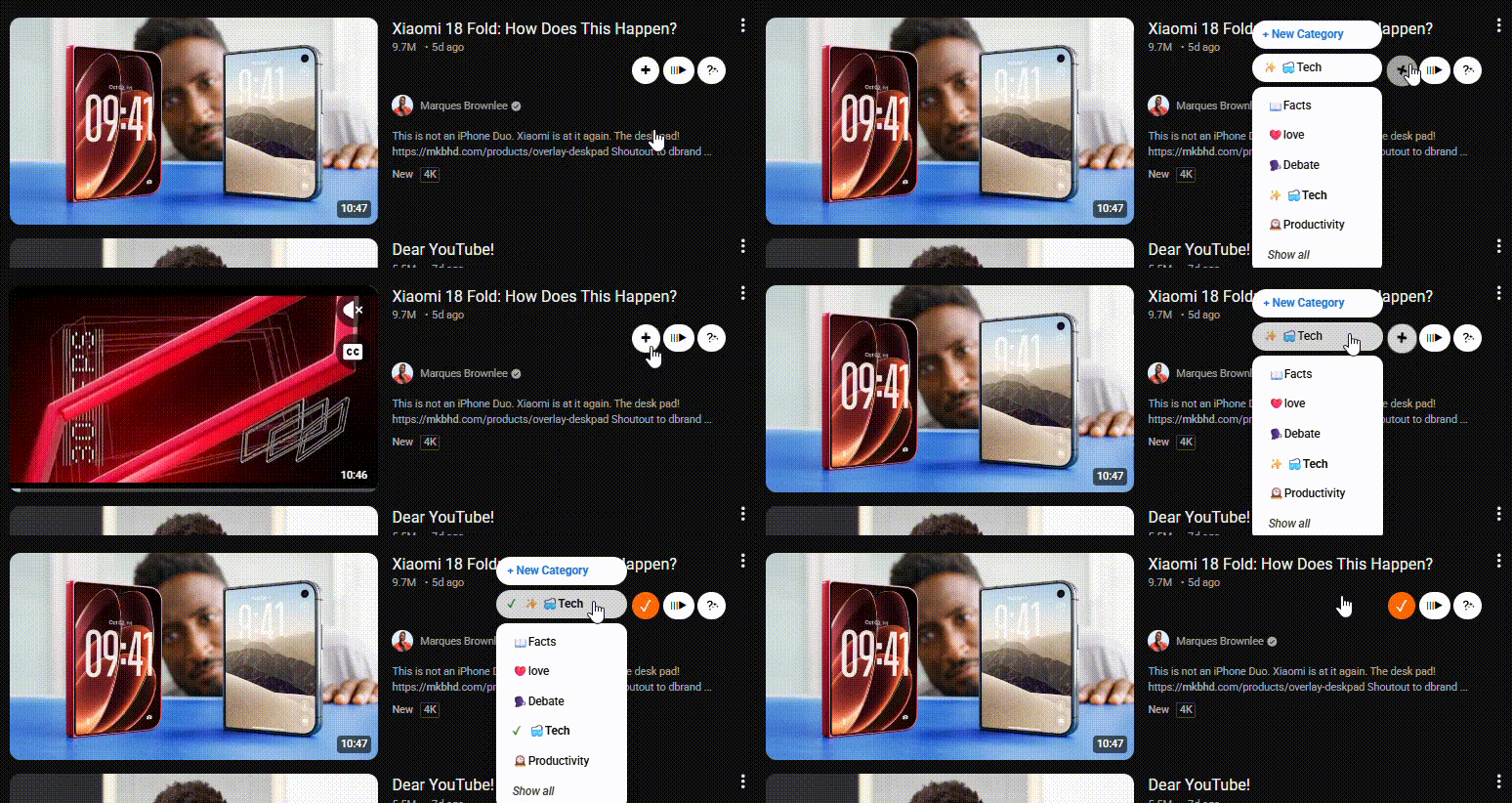
One click into the right category.